
Buyer’s guide · 2026
Garden Design App for iPhone: The 2026 Guide for iOS
A garden design app for iPhone turns one photo from your camera into a photorealistic redesign of that same garden — replanted, reimagined and ready in seconds, right on your phone. In 2026 the iPhone is unusually well suited to this: its camera captures the detail a good app needs, and iOS makes saving and sharing the result effortless. This guide explains, in plain English, how a garden design app works on iPhone, what separates a useful one from a gimmick, and how to get a design you can actually build from.
AI Garden Design GuidesPublished June 15, 2026Updated June 15, 20269 min read
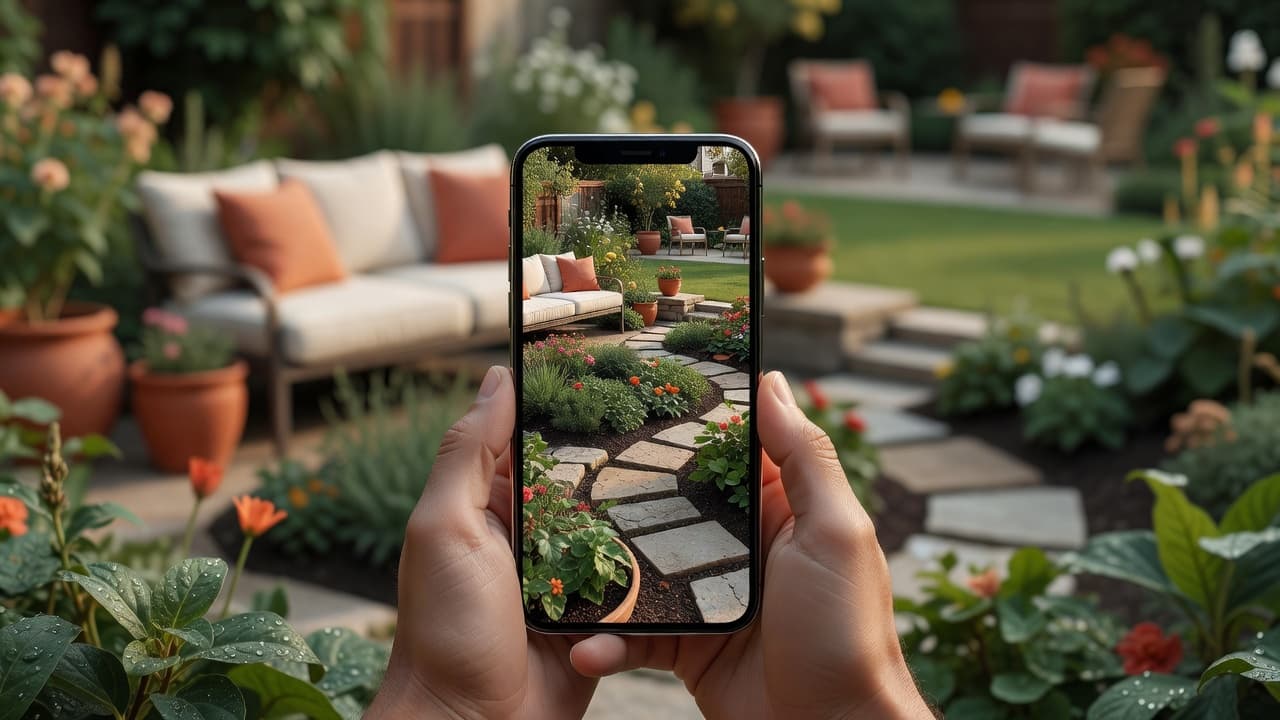
What a garden design app for iPhone actually does
The idea is refreshingly simple. You open the app on your iPhone, take or pick a photo of your garden, choose a style, and a few seconds later you are looking at your own space transformed. There is no CAD, no graph paper and no design training involved. If the whole concept is new to you, our plain-English explainer of AI garden design is the gentlest starting point, and the full AI garden design guide walks through a complete redesign with real before-and-after photos.
The word that matters is your. A weak app shows you a beautiful garden that belongs to someone else; a strong one shows you your garden, looking better, so the picture is genuinely useful when you start digging, buying plants or briefing a landscaper. FlorAI was built around exactly that, with a native iPhone app on the App Store and a free tier so you can see your own garden reimagined before deciding whether it is worth paying for.
Why the iPhone is well suited to garden design
A garden design app is only ever as good as the photo you feed it, and this is where the iPhone quietly shines. Recent models carry genuinely capable cameras — the iPhone 17 Pro, for example, uses a 48-megapixel main camera — and even older iPhones capture far more detail than an AI redesign needs. A few iOS strengths make the experience smoother than people expect:
- A camera that captures real detail. Smart HDR 5 and the modern image pipeline balance bright sky and shadowed borders in the same shot, so the app sees your fence, paving and existing plants clearly.
- Your whole garden is already on your phone. Most people have months of garden photos in the iOS Photos app, so you can redesign a summer border in the depths of winter.
- Effortless saving and sharing. The iOS share sheet means a finished design is one tap away from Messages, Mail, a notes app or a contractor’s inbox.
- It works wherever you are. You can stand in the garden, point your iPhone, and see the redesign on the same spot — no laptop, no desk, no measuring tape.
In short, the device most people already carry is the only piece of hardware a modern garden design app for iPhone needs. The skill lives in the app; the iPhone simply gives it a clear, well-lit photo to work from.
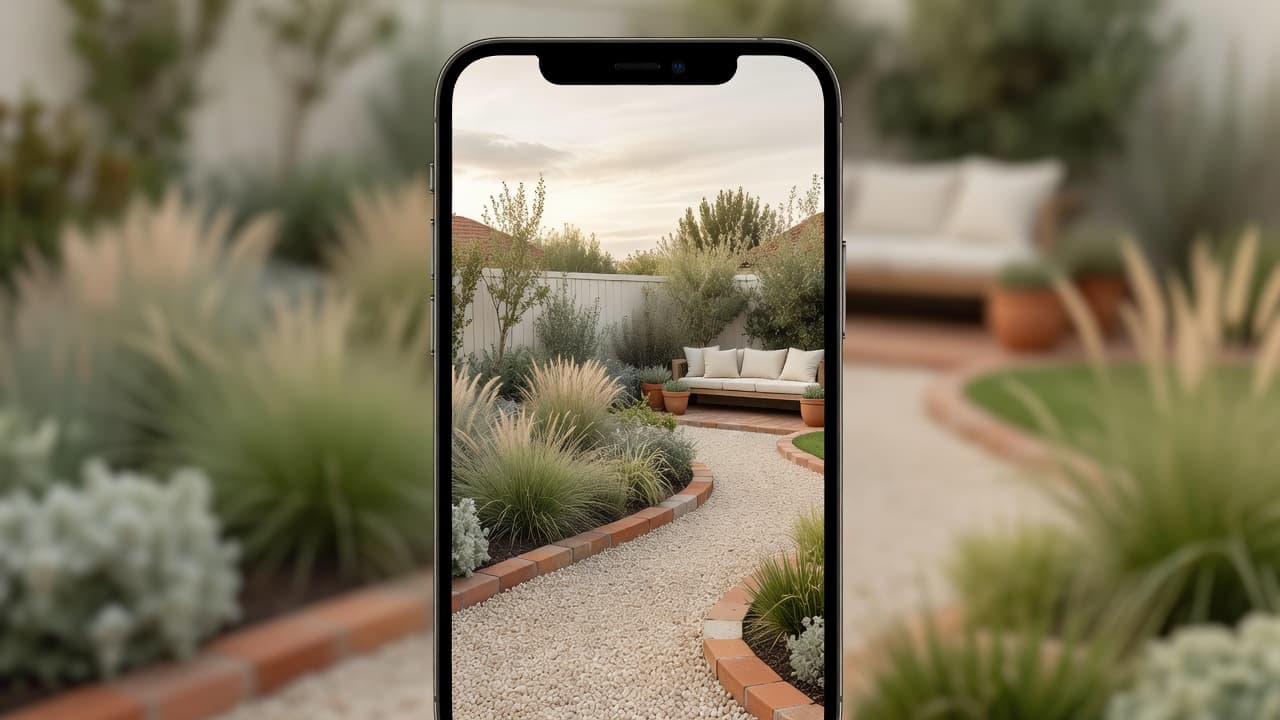
How to design your garden on iPhone, step by step
The first redesign takes about a minute. The process is the same whether you are reworking a back garden, a front garden, a patio or a balcony:
- Download the app from the App Store. Look for a native iPhone app with recent updates and clear, honest reviews rather than a hastily wrapped website.
- Take or choose one photo. Stand where you usually look at the garden — the back door or kitchen window — and capture the whole space in soft daylight.
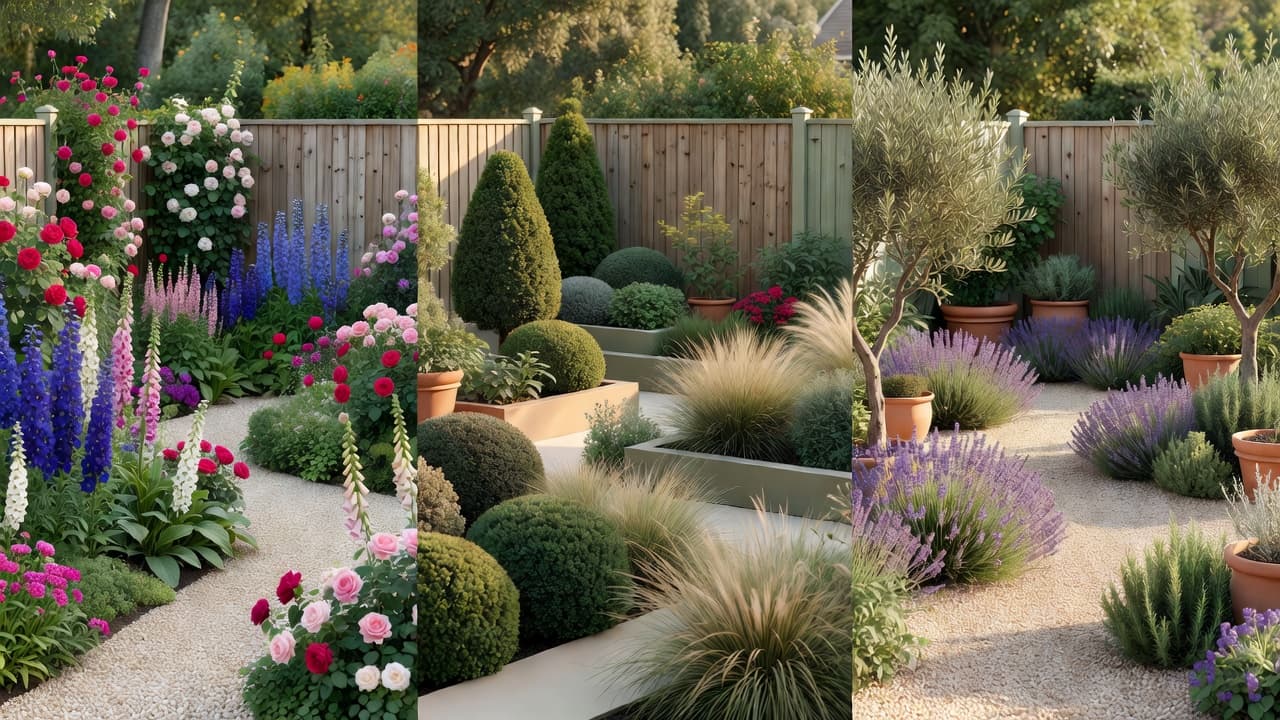
- Pick a style. Cottage, Mediterranean, modern, Japanese-inspired or low-maintenance — choose the mood you are drawn to, then try a second one for contrast.
- Let the app redesign it. In a few seconds you will see your own garden replanted and reimagined in that style, usually with the planting named.
- Save and compare. Keep your favourites in Photos, then line the before and after side by side to decide what to build first.
Because the app works from a photo rather than a blank plan, you are always editing your real space, not an idealised one. The difference between the two approaches is explained in designing from a photo versus from scratch.
What to look for in a garden design app for iPhone
Not every app in the App Store earns a place on your home screen. Before you trust one with your garden, run through a few quick checks:
- Does it redesign your own photo? Your fence, shed and main tree should still be recognisable in the result. If it quietly swaps in a stock garden, the picture is useless.
- Does it name real plants? Look for plants you could write on a shopping list — lavender, hydrangea, ornamental grasses — not just a green haze.
- Does it consider where you live? Climate-aware planting is the difference between a pretty picture and a plan you can actually grow.
- Is it a genuine iPhone app? A native iOS app that respects the share sheet and Photos feels far better than a website in a wrapper.
- Is the free tier honest? You should see clear, un-watermarked results and be able to try more than one style before any paywall.
An app that passes all five is worth keeping even if you never pay; one that fails two or three is worth deleting, however slick it looked. For a deeper version of this test, our checklist of what to look for in an AI garden design app turns it into a simple tick-box, and the 2026 buyer’s guide to AI garden design tools covers the features that separate a useful tool from a gimmick.
iOS features that make garden design easier
A garden design app for iPhone does not exist in isolation — it sits inside iOS, and in 2026 that platform does a lot of quiet work for you. iOS 26 introduced Apple’s Liquid Glass design and continued the rollout of Apple Intelligence, but the everyday features matter more for gardeners:
- Photos and albums. Keep a dedicated garden album so a year of seasons is one tap away when inspiration strikes.
- The share sheet. Send a finished design straight to a partner, a WhatsApp chat or a landscaper without leaving the app.
- Markup. Annotate a saved design in Photos to note where a path or a tree should go before you brief anyone.
- iCloud sync. Start a design on your iPhone and pick it up on an iPad on the sofa, with everything in step.
None of this is essential, but together it turns a single redesign into something you can plan around — saved, annotated, shared and revisited as the project takes shape over a season.
Photographing your garden on iPhone for the best result
The quality of your redesign depends mostly on the photo. A few small habits make a noticeable difference on any iPhone, old or new:
- Shoot in soft daylight. Early morning or an overcast afternoon avoids harsh shadows and gives the app the clearest view; Smart HDR handles the rest.
- Hold the iPhone level and capture the whole space. Step back far enough to include the boundaries — fences, walls and the main tree all help the app understand your garden.
- Stand where you actually live. A redesign framed from your kitchen window or back door is the one you will see every day.
- Tidy nothing. The messier the starting photo, the more useful the result, because it shows what is genuinely possible from where you are now.
- Take two or three angles. Different viewpoints let you redesign the parts of the garden that matter most to you.

Free on iPhone, or worth paying for?
Most good iPhone apps give you a real free tier — a set number of designs each month, enough to redesign your garden and try a few styles — with paid plans only if you want unlimited runs. That is usually plenty for a one-off project. It is also a fraction of the alternative: in the UK in 2026, a qualified designer registered with the Society of Garden Designers typically charges a day rate of £400–£900, an initial consultation of £150–£350, and a full design package averaging around £1,950.
The honest order is to explore for free first, settle the look on your own photo, and only then spend money — whether that is on an unlimited app plan, plants, or a landscaper for the build. Our 2026 garden design cost guide sets sensible expectations for what follows, and the honest guide to free AI garden design apps explains how to tell a genuine free tier from a teaser.
Climate awareness is the feature worth paying attention to. A garden that cannot survive your winter is not a design but a disappointment waiting to happen — and the goalposts are moving. In November 2023 the USDA updated its Plant Hardiness Zone Map for the first time since 2012, using 1991–2020 data from 13,412 weather stations; the new map is about 2.5°F warmer on average, shifting roughly half of the United States into the next warmer half-zone. An app that weighs your location is doing real work, not decoration.
Where an iPhone app stops and a designer begins
An honest guide names the limits. Even the best garden design app for iPhone is a brilliant way to decide what you want, not a replacement for skilled hands when the ground gets complicated. Steep slopes, retaining walls, drainage, boundaries and anything structural still want a real landscaper or garden designer. Treat the planting suggestions as a strong starting point and confirm anything unusual against your own climate — you can look up any unfamiliar plant on the RHS or Gardeners’ World before you buy.
Used that way, an iPhone garden design app is among the most reassuring tools you will reach for this year: it removes the guesswork, shows you the finished feeling in advance, and means the first real spade goes in with confidence rather than hope.
Frequently asked questions
What is the best garden design app for iPhone?
The best one redesigns your own photo (not a stock garden), names real plants, considers your climate, and offers an honest free tier. FlorAI meets that bar with a native iPhone app and a free plan, so you can judge it on your own garden before paying.
Is there a free garden design app for iPhone?
Yes. The honest ones offer a real free tier — a set number of designs each month, enough to redesign your garden and try a few styles. FlorAI has a free plan on iPhone, with paid plans only if you want unlimited designs.
Do I need a new iPhone to use a garden design app?
No. Newer models like the iPhone 17 Pro have excellent cameras, but any iPhone running a current version of iOS captures far more detail than an AI redesign needs. A clear photo in soft daylight matters more than the model.
Do I need design skills or measurements?
No. If you can take a photo on your iPhone, you can use a garden design app. There is no measuring, no CAD and no desktop software to install.
Can an iPhone app replace a garden designer?
For an ordinary garden it gets you most of the way and costs little or nothing. For slopes, drainage, retaining walls or anything structural you still want a professional — use the app to decide the look first, then hand your favourite design over.
Last updated: June 2026. Written by the FlorAI garden team.